> ## Documentation Index
> Fetch the complete documentation index at: https://docs-staging-feat-one-trust-integration.mintlify.site/llms.txt
> Use this file to discover all available pages before exploring further.

> Configure an update policy form using Forms for Actions

# Use Cases: Configure an update policy form using Forms

<Card title="Before you start">
  1. Create a [Machine-to-Machine Application](/docs/get-started/auth0-overview/create-applications/machine-to-machine-apps) with the following scopes enabled:

  * `read:users`
  * `update:users`
  * `create:users`
  * `read:users_app_metadata`
  * `update:users_app_metadata`
  * `create:users_app_metadata`

  2. Add a [Vault connection](/docs/customize/forms/vault) using the M2M application credentials.
</Card>

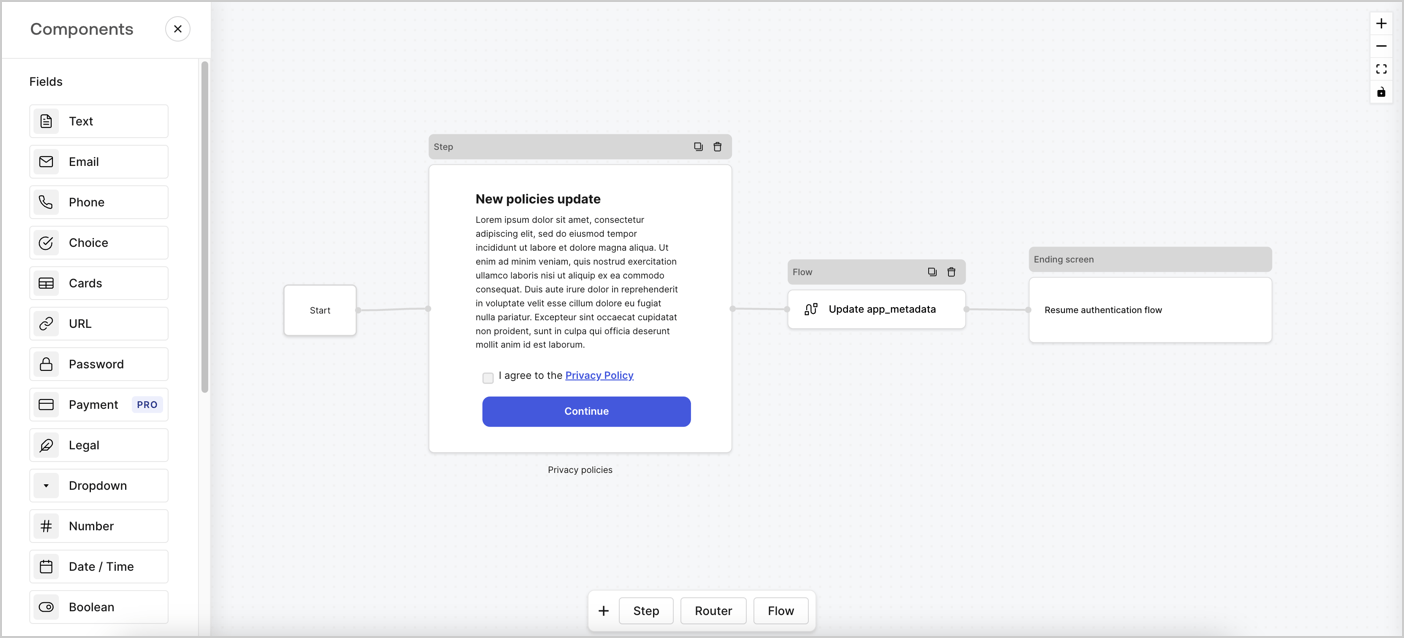
Forms for Actions allows you to create custom privacy policies flows and store the consent under the `app_metadata` object.
<Frame>
  <img src="https://mintcdn.com/docs-staging-feat-one-trust-integration/CG4b0cK9pYgoeUpz/docs/images/cdy7uua7fh8z/6i68dMvHDTijfRmSgN1x8Q/ad900e7d4c0fb34645921435472b8684/privavy-policy-form.png?fit=max&auto=format&n=CG4b0cK9pYgoeUpz&q=85&s=04af587b495941c83f0ed9ada111df46" alt="Dashboard > Actions > Forms > Privacy policy use case" data-og-width="1404" width="1404" data-og-height="638" height="638" data-path="docs/images/cdy7uua7fh8z/6i68dMvHDTijfRmSgN1x8Q/ad900e7d4c0fb34645921435472b8684/privavy-policy-form.png" data-optimize="true" data-opv="3" srcset="https://mintcdn.com/docs-staging-feat-one-trust-integration/CG4b0cK9pYgoeUpz/docs/images/cdy7uua7fh8z/6i68dMvHDTijfRmSgN1x8Q/ad900e7d4c0fb34645921435472b8684/privavy-policy-form.png?w=280&fit=max&auto=format&n=CG4b0cK9pYgoeUpz&q=85&s=5b1a21f813acc2039b2cb980c79a815f 280w, https://mintcdn.com/docs-staging-feat-one-trust-integration/CG4b0cK9pYgoeUpz/docs/images/cdy7uua7fh8z/6i68dMvHDTijfRmSgN1x8Q/ad900e7d4c0fb34645921435472b8684/privavy-policy-form.png?w=560&fit=max&auto=format&n=CG4b0cK9pYgoeUpz&q=85&s=e3ac3d0b3fdf680c844392a708fcf0fb 560w, https://mintcdn.com/docs-staging-feat-one-trust-integration/CG4b0cK9pYgoeUpz/docs/images/cdy7uua7fh8z/6i68dMvHDTijfRmSgN1x8Q/ad900e7d4c0fb34645921435472b8684/privavy-policy-form.png?w=840&fit=max&auto=format&n=CG4b0cK9pYgoeUpz&q=85&s=30f27a2a17f81a646045010aaf6af507 840w, https://mintcdn.com/docs-staging-feat-one-trust-integration/CG4b0cK9pYgoeUpz/docs/images/cdy7uua7fh8z/6i68dMvHDTijfRmSgN1x8Q/ad900e7d4c0fb34645921435472b8684/privavy-policy-form.png?w=1100&fit=max&auto=format&n=CG4b0cK9pYgoeUpz&q=85&s=f4d9fcbaefc029194567b40718b00a94 1100w, https://mintcdn.com/docs-staging-feat-one-trust-integration/CG4b0cK9pYgoeUpz/docs/images/cdy7uua7fh8z/6i68dMvHDTijfRmSgN1x8Q/ad900e7d4c0fb34645921435472b8684/privavy-policy-form.png?w=1650&fit=max&auto=format&n=CG4b0cK9pYgoeUpz&q=85&s=6e7741d02d85ab5f8977fbcc94317e10 1650w, https://mintcdn.com/docs-staging-feat-one-trust-integration/CG4b0cK9pYgoeUpz/docs/images/cdy7uua7fh8z/6i68dMvHDTijfRmSgN1x8Q/ad900e7d4c0fb34645921435472b8684/privavy-policy-form.png?w=2500&fit=max&auto=format&n=CG4b0cK9pYgoeUpz&q=85&s=a3fded77149268f2a394f79603b3a968 2500w" />
</Frame>

The sections below outline how you can create an Update Policy form using nodes and flows, along with steps for adding your form to a [Post Login](/docs/customize/actions/explore-triggers/signup-and-login-triggers/login-trigger) Action.

## Create a form from scratch

Follow these steps to create a form to gather information:

1. Open the Form editor by selecting **Auth0 Dashboard > Actions > Forms.**
2. Select **Create Form** > **Start from scratch**.

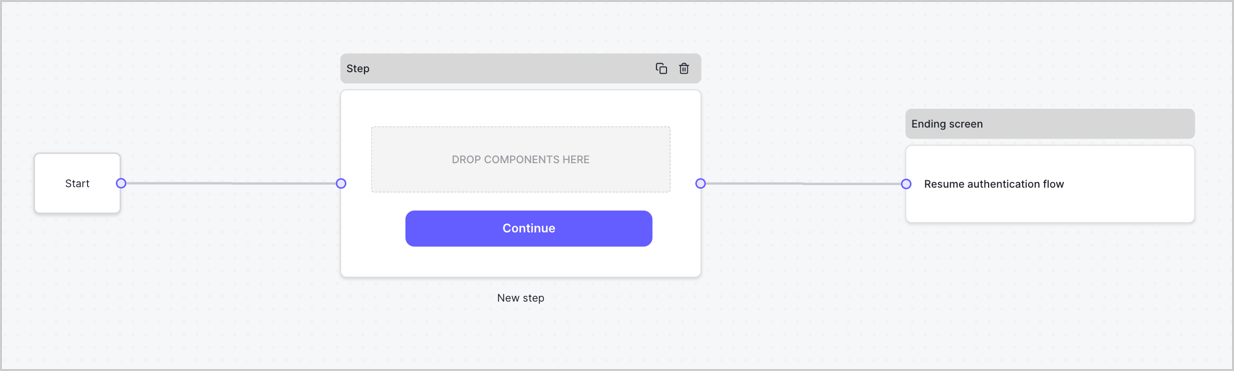
By default, a new form contains a Start node, a Step node, and an Ending screen node.
<Frame>
  <img src="https://mintcdn.com/docs-staging-feat-one-trust-integration/DI4euJu3KvyUqq60/docs/images/cdy7uua7fh8z/2TZ9jSjgEcARFpULI6hz4R/a4319a1bd482f2ee5cc23100fdb2f42c/New-form-Forms-for-action-use-case.png?fit=max&auto=format&n=DI4euJu3KvyUqq60&q=85&s=3569347f8807d64270b7d845a6c8e19c" alt="Dashboard > Forms > Use Cases > Form" data-og-width="1234" width="1234" data-og-height="371" height="371" data-path="docs/images/cdy7uua7fh8z/2TZ9jSjgEcARFpULI6hz4R/a4319a1bd482f2ee5cc23100fdb2f42c/New-form-Forms-for-action-use-case.png" data-optimize="true" data-opv="3" srcset="https://mintcdn.com/docs-staging-feat-one-trust-integration/DI4euJu3KvyUqq60/docs/images/cdy7uua7fh8z/2TZ9jSjgEcARFpULI6hz4R/a4319a1bd482f2ee5cc23100fdb2f42c/New-form-Forms-for-action-use-case.png?w=280&fit=max&auto=format&n=DI4euJu3KvyUqq60&q=85&s=702d219de10a31eaa801f01f5b7cac49 280w, https://mintcdn.com/docs-staging-feat-one-trust-integration/DI4euJu3KvyUqq60/docs/images/cdy7uua7fh8z/2TZ9jSjgEcARFpULI6hz4R/a4319a1bd482f2ee5cc23100fdb2f42c/New-form-Forms-for-action-use-case.png?w=560&fit=max&auto=format&n=DI4euJu3KvyUqq60&q=85&s=1f1598037a7d769dc6783966a866a122 560w, https://mintcdn.com/docs-staging-feat-one-trust-integration/DI4euJu3KvyUqq60/docs/images/cdy7uua7fh8z/2TZ9jSjgEcARFpULI6hz4R/a4319a1bd482f2ee5cc23100fdb2f42c/New-form-Forms-for-action-use-case.png?w=840&fit=max&auto=format&n=DI4euJu3KvyUqq60&q=85&s=62683ed84ed189e39730becc8ae8c302 840w, https://mintcdn.com/docs-staging-feat-one-trust-integration/DI4euJu3KvyUqq60/docs/images/cdy7uua7fh8z/2TZ9jSjgEcARFpULI6hz4R/a4319a1bd482f2ee5cc23100fdb2f42c/New-form-Forms-for-action-use-case.png?w=1100&fit=max&auto=format&n=DI4euJu3KvyUqq60&q=85&s=8e06d3002dc1f08900410949d050b9c9 1100w, https://mintcdn.com/docs-staging-feat-one-trust-integration/DI4euJu3KvyUqq60/docs/images/cdy7uua7fh8z/2TZ9jSjgEcARFpULI6hz4R/a4319a1bd482f2ee5cc23100fdb2f42c/New-form-Forms-for-action-use-case.png?w=1650&fit=max&auto=format&n=DI4euJu3KvyUqq60&q=85&s=605188ddf06331b6993ee15ec2ddd8c0 1650w, https://mintcdn.com/docs-staging-feat-one-trust-integration/DI4euJu3KvyUqq60/docs/images/cdy7uua7fh8z/2TZ9jSjgEcARFpULI6hz4R/a4319a1bd482f2ee5cc23100fdb2f42c/New-form-Forms-for-action-use-case.png?w=2500&fit=max&auto=format&n=DI4euJu3KvyUqq60&q=85&s=51d9cb5a88eb49966dcd70988819146f 2500w" />
</Frame>

### Configure the Step node

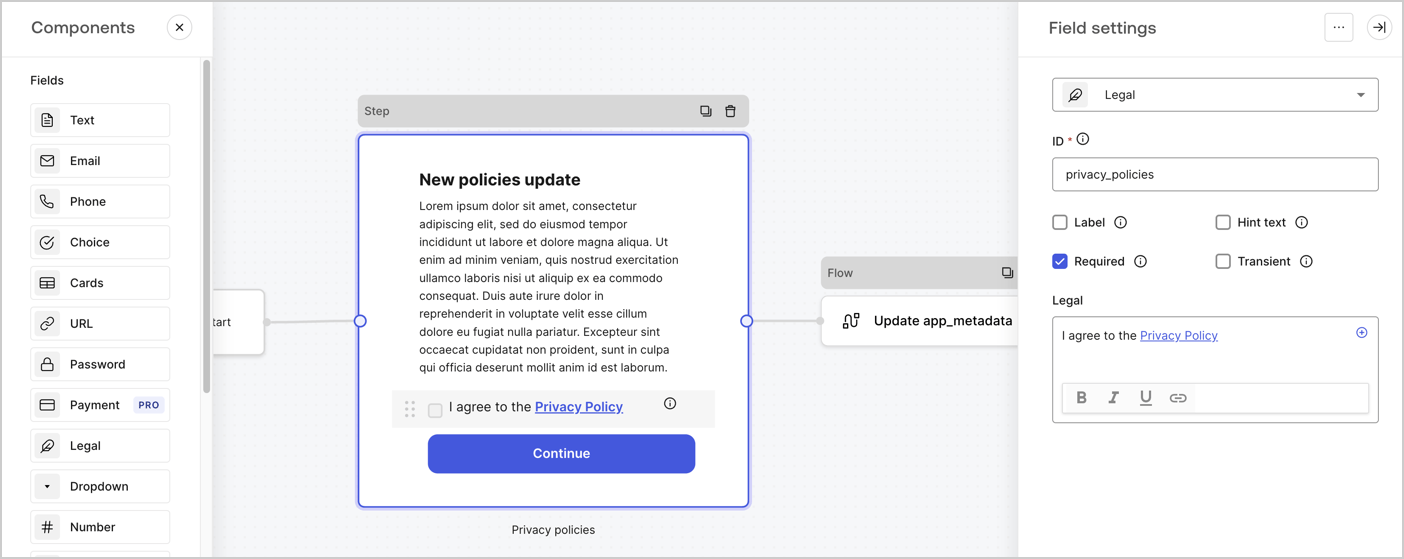
The Step node is the graphical interface visible to users. Add [Fields](/docs/customize/forms/nodes-and-components) to the Step node to collect the new agreement acceptance value by following these steps:

1. Drag a **Rich text** field from the **Components menu** into the **Step** node.

   * **Rich text**: Enter a description of your privacy policies updates.
   * Select **Save**.
2. Drag a **Legal** field into the **Step** node.

   * **ID**: Enter `privacy_policies`.
   * **Required**: Enable the checkbox.
   * **Legal**: Enter `I agree to the Privacy Policy`.
   * Select **Save**.
3. Select **Publish** to save.
<Frame>
  <img src="https://mintcdn.com/docs-staging-feat-one-trust-integration/BLM3i-PPCxSZDKAL/docs/images/cdy7uua7fh8z/59zFFjQjAnjogkc2QGIqqJ/0ad66b1b636544122aa4e65968b76c2c/privacy-policy-step-node.png?fit=max&auto=format&n=BLM3i-PPCxSZDKAL&q=85&s=1e3fd693340c0d4f48d27d9408c915d9" alt="Dashboard > Actions > Forms > Use case privacy policy step node" data-og-width="1404" width="1404" data-og-height="559" height="559" data-path="docs/images/cdy7uua7fh8z/59zFFjQjAnjogkc2QGIqqJ/0ad66b1b636544122aa4e65968b76c2c/privacy-policy-step-node.png" data-optimize="true" data-opv="3" srcset="https://mintcdn.com/docs-staging-feat-one-trust-integration/BLM3i-PPCxSZDKAL/docs/images/cdy7uua7fh8z/59zFFjQjAnjogkc2QGIqqJ/0ad66b1b636544122aa4e65968b76c2c/privacy-policy-step-node.png?w=280&fit=max&auto=format&n=BLM3i-PPCxSZDKAL&q=85&s=10a1ba4256f7a76694bdca34c896a9d5 280w, https://mintcdn.com/docs-staging-feat-one-trust-integration/BLM3i-PPCxSZDKAL/docs/images/cdy7uua7fh8z/59zFFjQjAnjogkc2QGIqqJ/0ad66b1b636544122aa4e65968b76c2c/privacy-policy-step-node.png?w=560&fit=max&auto=format&n=BLM3i-PPCxSZDKAL&q=85&s=da7495e35c65eaf2488396a3fac88286 560w, https://mintcdn.com/docs-staging-feat-one-trust-integration/BLM3i-PPCxSZDKAL/docs/images/cdy7uua7fh8z/59zFFjQjAnjogkc2QGIqqJ/0ad66b1b636544122aa4e65968b76c2c/privacy-policy-step-node.png?w=840&fit=max&auto=format&n=BLM3i-PPCxSZDKAL&q=85&s=d318f72570d6ade3186c2cf3cf44d0f5 840w, https://mintcdn.com/docs-staging-feat-one-trust-integration/BLM3i-PPCxSZDKAL/docs/images/cdy7uua7fh8z/59zFFjQjAnjogkc2QGIqqJ/0ad66b1b636544122aa4e65968b76c2c/privacy-policy-step-node.png?w=1100&fit=max&auto=format&n=BLM3i-PPCxSZDKAL&q=85&s=4f8159eebfaa5cf749e43f5c52536ea7 1100w, https://mintcdn.com/docs-staging-feat-one-trust-integration/BLM3i-PPCxSZDKAL/docs/images/cdy7uua7fh8z/59zFFjQjAnjogkc2QGIqqJ/0ad66b1b636544122aa4e65968b76c2c/privacy-policy-step-node.png?w=1650&fit=max&auto=format&n=BLM3i-PPCxSZDKAL&q=85&s=17434b9bd361e31da7aeaa4cca4a6e92 1650w, https://mintcdn.com/docs-staging-feat-one-trust-integration/BLM3i-PPCxSZDKAL/docs/images/cdy7uua7fh8z/59zFFjQjAnjogkc2QGIqqJ/0ad66b1b636544122aa4e65968b76c2c/privacy-policy-step-node.png?w=2500&fit=max&auto=format&n=BLM3i-PPCxSZDKAL&q=85&s=43c79674f5d3dff93d77d8c8a1c8475d 2500w" />
</Frame>

### Configure the Flow node

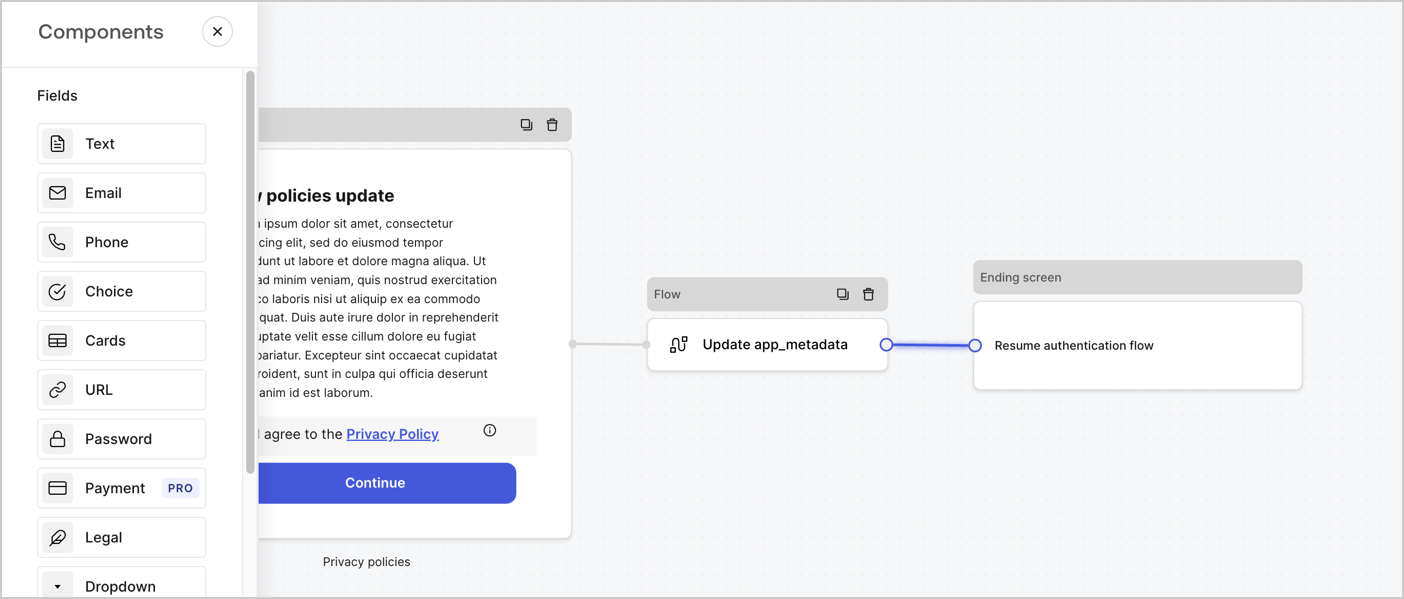
Add a **Flow** node after the **Step** node to update the `app_metadata` and resume the authentication flow by following these steps:

1. Select **Flow** from the bottom of the Form editor.
2. Remove the existing link between the **Step** and **Ending Screen** nodes.
3. Select the new **Flow** > **Click to add a flow** > **Create a new flow.**

   * Enter `Update app_metadata` in the **Name** field.
   * Select **Create**.
   * Select **Save**.
4. Link the **Flow** node to the **Step** and **Ending Screen** nodes as pictured below.
5. Select **Publish** to save.
<Frame>
  <img src="https://mintcdn.com/docs-staging-feat-one-trust-integration/CG4b0cK9pYgoeUpz/docs/images/cdy7uua7fh8z/6YIkzm7SrpM9LW76AXuRzh/353c518fe82bbaa440836da1d83596d6/link-policies.png?fit=max&auto=format&n=CG4b0cK9pYgoeUpz&q=85&s=f3d4c4e21c16f7d9758a1263c537f9c7" alt="Dashboard > Actions > Forms > Form" data-og-width="1404" width="1404" data-og-height="599" height="599" data-path="docs/images/cdy7uua7fh8z/6YIkzm7SrpM9LW76AXuRzh/353c518fe82bbaa440836da1d83596d6/link-policies.png" data-optimize="true" data-opv="3" srcset="https://mintcdn.com/docs-staging-feat-one-trust-integration/CG4b0cK9pYgoeUpz/docs/images/cdy7uua7fh8z/6YIkzm7SrpM9LW76AXuRzh/353c518fe82bbaa440836da1d83596d6/link-policies.png?w=280&fit=max&auto=format&n=CG4b0cK9pYgoeUpz&q=85&s=356cccdad974762a46aba8695c80b04f 280w, https://mintcdn.com/docs-staging-feat-one-trust-integration/CG4b0cK9pYgoeUpz/docs/images/cdy7uua7fh8z/6YIkzm7SrpM9LW76AXuRzh/353c518fe82bbaa440836da1d83596d6/link-policies.png?w=560&fit=max&auto=format&n=CG4b0cK9pYgoeUpz&q=85&s=7d172ac7f5971ae1bf7200ed47997f1d 560w, https://mintcdn.com/docs-staging-feat-one-trust-integration/CG4b0cK9pYgoeUpz/docs/images/cdy7uua7fh8z/6YIkzm7SrpM9LW76AXuRzh/353c518fe82bbaa440836da1d83596d6/link-policies.png?w=840&fit=max&auto=format&n=CG4b0cK9pYgoeUpz&q=85&s=bbe3b0d3b5b00399fa3c375c9d2a2f18 840w, https://mintcdn.com/docs-staging-feat-one-trust-integration/CG4b0cK9pYgoeUpz/docs/images/cdy7uua7fh8z/6YIkzm7SrpM9LW76AXuRzh/353c518fe82bbaa440836da1d83596d6/link-policies.png?w=1100&fit=max&auto=format&n=CG4b0cK9pYgoeUpz&q=85&s=762ff22cc04c02cf71c32d08b91d5a25 1100w, https://mintcdn.com/docs-staging-feat-one-trust-integration/CG4b0cK9pYgoeUpz/docs/images/cdy7uua7fh8z/6YIkzm7SrpM9LW76AXuRzh/353c518fe82bbaa440836da1d83596d6/link-policies.png?w=1650&fit=max&auto=format&n=CG4b0cK9pYgoeUpz&q=85&s=bd25e2111a3c546ca37efaf45ad65352 1650w, https://mintcdn.com/docs-staging-feat-one-trust-integration/CG4b0cK9pYgoeUpz/docs/images/cdy7uua7fh8z/6YIkzm7SrpM9LW76AXuRzh/353c518fe82bbaa440836da1d83596d6/link-policies.png?w=2500&fit=max&auto=format&n=CG4b0cK9pYgoeUpz&q=85&s=519a454ffbd892d22fd1cbf8b29c0c01 2500w" />
</Frame>

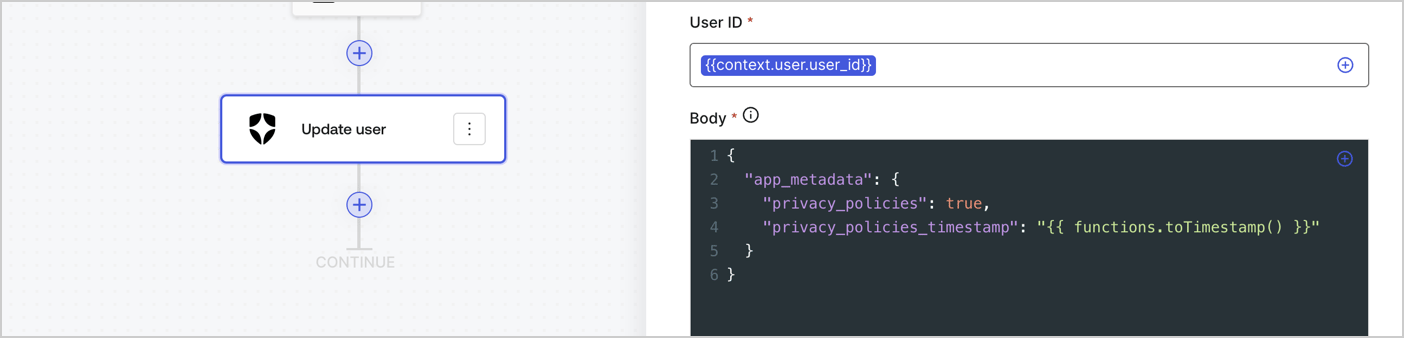
Add an Auth0 Update user action to the flow by following these steps:

1. Select the **Flow** **Update app\_metadata** > **Edit flow** to open the Flow editor in a new tab.
2. Below the StartAction, select the **+** icon to add an **Update user** action. Complete the fields below, then select **Save** to continue.

   * **Connection**: Select from the dropdown the Vault connection to your M2M application.

   * **User ID**: Enter `{{context.user.user_id}}`.

   * **Body**: Copy and paste the following code to update the app\_metadata with the privacy\_policies and privacy\_policies\_timestamp properties.

     ```text lines theme={null}
     {
       "app_metadata": {
         "privacy_policies": true,
         "privacy_policies_timestamp": "{{ functions.toTimestamp() }}"
       }
     }
     ```

   * Select **Save**.
3. Select **Publish** to save.
<Frame>
  <img src="https://mintcdn.com/docs-staging-feat-one-trust-integration/CyrNy6ELeKYad4Zn/docs/images/cdy7uua7fh8z/CvMNIwWrOUwaFW4X3G28p/1fb70ae57a20749d9ffaaba8dc0b7e26/update-user-privacy.png?fit=max&auto=format&n=CyrNy6ELeKYad4Zn&q=85&s=d65ee9083b1e6fc6caafcdbc46d21a14" alt="Dashboard > Actions > Forms > User case privacy policy code" data-og-width="1404" width="1404" data-og-height="338" height="338" data-path="docs/images/cdy7uua7fh8z/CvMNIwWrOUwaFW4X3G28p/1fb70ae57a20749d9ffaaba8dc0b7e26/update-user-privacy.png" data-optimize="true" data-opv="3" srcset="https://mintcdn.com/docs-staging-feat-one-trust-integration/CyrNy6ELeKYad4Zn/docs/images/cdy7uua7fh8z/CvMNIwWrOUwaFW4X3G28p/1fb70ae57a20749d9ffaaba8dc0b7e26/update-user-privacy.png?w=280&fit=max&auto=format&n=CyrNy6ELeKYad4Zn&q=85&s=3ede4ee5936f640e4c4a2a4aadec8a25 280w, https://mintcdn.com/docs-staging-feat-one-trust-integration/CyrNy6ELeKYad4Zn/docs/images/cdy7uua7fh8z/CvMNIwWrOUwaFW4X3G28p/1fb70ae57a20749d9ffaaba8dc0b7e26/update-user-privacy.png?w=560&fit=max&auto=format&n=CyrNy6ELeKYad4Zn&q=85&s=7eb8659016645b20c36c86e0f2f4869f 560w, https://mintcdn.com/docs-staging-feat-one-trust-integration/CyrNy6ELeKYad4Zn/docs/images/cdy7uua7fh8z/CvMNIwWrOUwaFW4X3G28p/1fb70ae57a20749d9ffaaba8dc0b7e26/update-user-privacy.png?w=840&fit=max&auto=format&n=CyrNy6ELeKYad4Zn&q=85&s=a6204f3947132b6fadd45a9aee13ead2 840w, https://mintcdn.com/docs-staging-feat-one-trust-integration/CyrNy6ELeKYad4Zn/docs/images/cdy7uua7fh8z/CvMNIwWrOUwaFW4X3G28p/1fb70ae57a20749d9ffaaba8dc0b7e26/update-user-privacy.png?w=1100&fit=max&auto=format&n=CyrNy6ELeKYad4Zn&q=85&s=6c69dc77a751974986e53f9442647e84 1100w, https://mintcdn.com/docs-staging-feat-one-trust-integration/CyrNy6ELeKYad4Zn/docs/images/cdy7uua7fh8z/CvMNIwWrOUwaFW4X3G28p/1fb70ae57a20749d9ffaaba8dc0b7e26/update-user-privacy.png?w=1650&fit=max&auto=format&n=CyrNy6ELeKYad4Zn&q=85&s=3ff8d8f2ad21d29699a37af72064fe14 1650w, https://mintcdn.com/docs-staging-feat-one-trust-integration/CyrNy6ELeKYad4Zn/docs/images/cdy7uua7fh8z/CvMNIwWrOUwaFW4X3G28p/1fb70ae57a20749d9ffaaba8dc0b7e26/update-user-privacy.png?w=2500&fit=max&auto=format&n=CyrNy6ELeKYad4Zn&q=85&s=b633fce1e25754867f2aa6425bd9abc7 2500w" />
</Frame>

<Callout icon="file-lines" color="#0EA5E9" iconType="regular">
  The flow **Update app\_metadata** adds a `privacy_policies true` value to the app`_metadata` object and also generates a timestamp with a [helper function.](/docs/customize/forms/variables)
</Callout>

## Retrieve the form render code

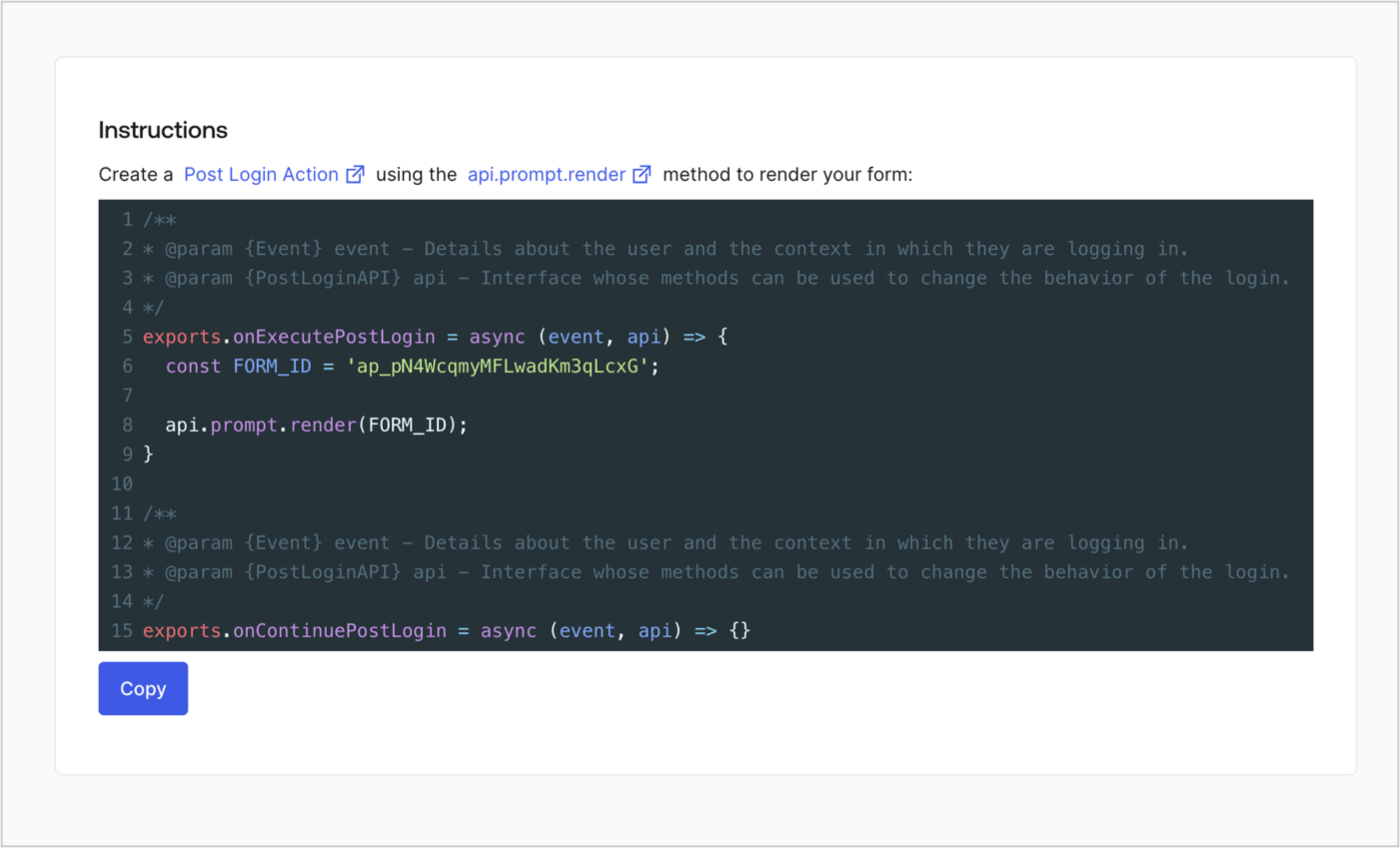
Retrieve your form render code to visually render the form with a custom Post Login Action by following these steps:

* From the Form editor, select **`<> Render`**.
* Select **Copy**.
<Frame>
  <img src="https://mintcdn.com/docs-staging-feat-one-trust-integration/9s2ksd-AHybzoM2J/docs/images/cdy7uua7fh8z/2EIUzc539sq9lwoTKbjoJv/496a864c0fc44a782c9cadca119dbfb0/embed.png?fit=max&auto=format&n=9s2ksd-AHybzoM2J&q=85&s=d4668c20071f7be467a5122efb5b1ba5" alt="Dashboard > Actions > Forms > Form > Embed" data-og-width="1400" width="1400" data-og-height="848" height="848" data-path="docs/images/cdy7uua7fh8z/2EIUzc539sq9lwoTKbjoJv/496a864c0fc44a782c9cadca119dbfb0/embed.png" data-optimize="true" data-opv="3" srcset="https://mintcdn.com/docs-staging-feat-one-trust-integration/9s2ksd-AHybzoM2J/docs/images/cdy7uua7fh8z/2EIUzc539sq9lwoTKbjoJv/496a864c0fc44a782c9cadca119dbfb0/embed.png?w=280&fit=max&auto=format&n=9s2ksd-AHybzoM2J&q=85&s=9dd2617759449479195bfe1f204a973b 280w, https://mintcdn.com/docs-staging-feat-one-trust-integration/9s2ksd-AHybzoM2J/docs/images/cdy7uua7fh8z/2EIUzc539sq9lwoTKbjoJv/496a864c0fc44a782c9cadca119dbfb0/embed.png?w=560&fit=max&auto=format&n=9s2ksd-AHybzoM2J&q=85&s=a7b909f7f1057ae59aff75e2b5ee8eea 560w, https://mintcdn.com/docs-staging-feat-one-trust-integration/9s2ksd-AHybzoM2J/docs/images/cdy7uua7fh8z/2EIUzc539sq9lwoTKbjoJv/496a864c0fc44a782c9cadca119dbfb0/embed.png?w=840&fit=max&auto=format&n=9s2ksd-AHybzoM2J&q=85&s=a6ba69c9741f4d59f41d2f380f5e7739 840w, https://mintcdn.com/docs-staging-feat-one-trust-integration/9s2ksd-AHybzoM2J/docs/images/cdy7uua7fh8z/2EIUzc539sq9lwoTKbjoJv/496a864c0fc44a782c9cadca119dbfb0/embed.png?w=1100&fit=max&auto=format&n=9s2ksd-AHybzoM2J&q=85&s=7bf295d4f10531552c051fd2b572708c 1100w, https://mintcdn.com/docs-staging-feat-one-trust-integration/9s2ksd-AHybzoM2J/docs/images/cdy7uua7fh8z/2EIUzc539sq9lwoTKbjoJv/496a864c0fc44a782c9cadca119dbfb0/embed.png?w=1650&fit=max&auto=format&n=9s2ksd-AHybzoM2J&q=85&s=d70edc0a9f7e213b1f9ad2236b7ec3e7 1650w, https://mintcdn.com/docs-staging-feat-one-trust-integration/9s2ksd-AHybzoM2J/docs/images/cdy7uua7fh8z/2EIUzc539sq9lwoTKbjoJv/496a864c0fc44a782c9cadca119dbfb0/embed.png?w=2500&fit=max&auto=format&n=9s2ksd-AHybzoM2J&q=85&s=6e372a9438f5e29cb941eb1ce85be5a8 2500w" />
</Frame>

## Create a Post Login Action

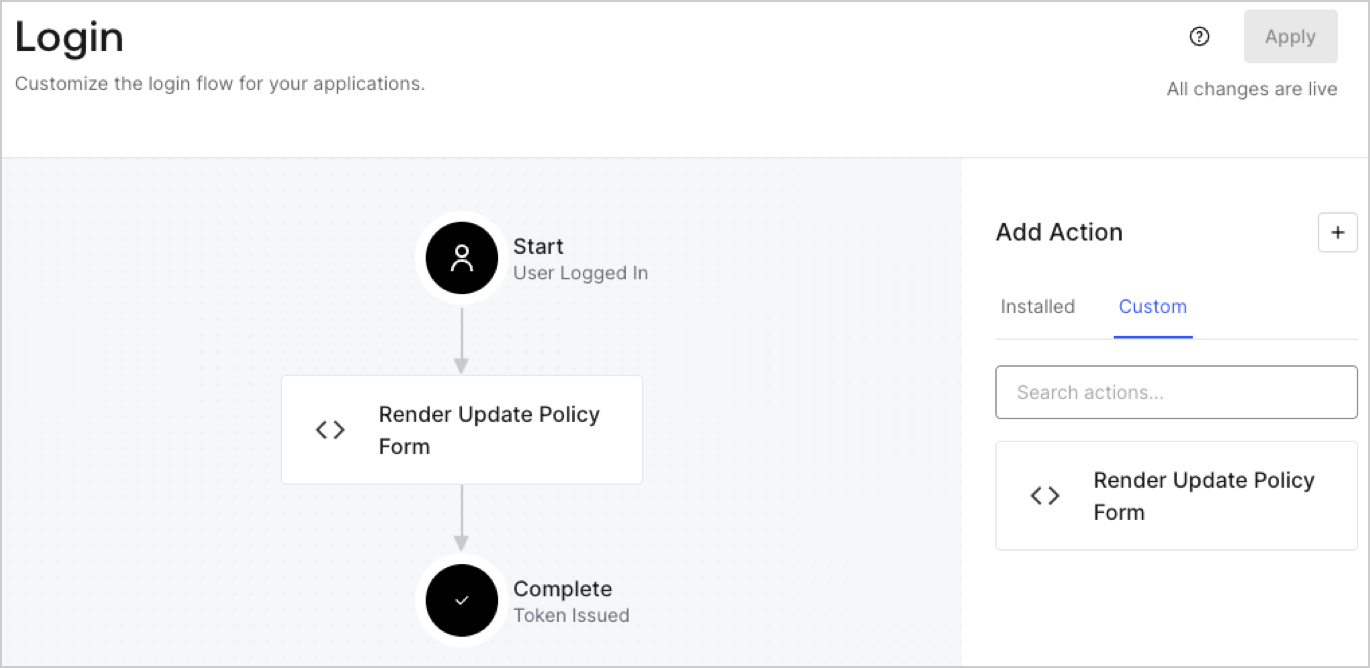
Create a post-login Action to render your form by following these steps:

1. Navigate to **Auth0 Dashboard > Actions > Flows > Login.**
2. Select the **+** icon and Select **Build from scratch**:

   * **Name**: Enter `Render Update Policy Form`.
   * **Trigger**: Select `Login / Post Login`.
   * **Runtime**: Select the recommended version.
3. Select **Create**.

To configure the post-login Action:

1. Delete the existing code from the Code editor.
2. Paste the form render code into the Code editor.
3. Edit the code to define the conditional logic that will render the form.

   ```javascript lines theme={null}
   /**
   * @param {Event} event - Details about the user and the context in which they are logging in.
   * @param {PostLoginAPI} api - Interface whose methods can be used to change the behavior of the login.
   */
   exports.onExecutePostLogin = async (event, api) => {
     const FORM_ID = 'REPLACE_WITH_YOUR_FORM_ID';

     if (event.user.app_metadata.privacy_policies !== true) {
       api.prompt.render(FORM_ID);
     }
   }

   exports.onContinuePostLogin = async (event, api) => { }
   ```

   <Callout icon="file-lines" color="#0EA5E9" iconType="regular">
     The example code above will render the form when a user is missing the app metadata `privacy_policies` property.
   </Callout>
4. Select **Deploy.**
5. Drag and Drop the **Render Update Policy Form** Action to the **Login** flow.
   <Frame>
     <img src="https://mintcdn.com/docs-staging-feat-one-trust-integration/-leoCX1jfqVwQ0cO/docs/images/cdy7uua7fh8z/5TOwDgevZsBqd7yZynUYWU/41ca909dc3007aed4f40ff794a05efa5/postlogin.png?fit=max&auto=format&n=-leoCX1jfqVwQ0cO&q=85&s=6bb9c936053128e1e785cd0014d0ebce" alt="Dashboard > Forms > Use Case > Render update policy form login action" data-og-width="1370" width="1370" data-og-height="668" height="668" data-path="docs/images/cdy7uua7fh8z/5TOwDgevZsBqd7yZynUYWU/41ca909dc3007aed4f40ff794a05efa5/postlogin.png" data-optimize="true" data-opv="3" srcset="https://mintcdn.com/docs-staging-feat-one-trust-integration/-leoCX1jfqVwQ0cO/docs/images/cdy7uua7fh8z/5TOwDgevZsBqd7yZynUYWU/41ca909dc3007aed4f40ff794a05efa5/postlogin.png?w=280&fit=max&auto=format&n=-leoCX1jfqVwQ0cO&q=85&s=95988dbd23444ec363c3ae87d79dc0e4 280w, https://mintcdn.com/docs-staging-feat-one-trust-integration/-leoCX1jfqVwQ0cO/docs/images/cdy7uua7fh8z/5TOwDgevZsBqd7yZynUYWU/41ca909dc3007aed4f40ff794a05efa5/postlogin.png?w=560&fit=max&auto=format&n=-leoCX1jfqVwQ0cO&q=85&s=20cb19347f4199ccb5d922a997af845b 560w, https://mintcdn.com/docs-staging-feat-one-trust-integration/-leoCX1jfqVwQ0cO/docs/images/cdy7uua7fh8z/5TOwDgevZsBqd7yZynUYWU/41ca909dc3007aed4f40ff794a05efa5/postlogin.png?w=840&fit=max&auto=format&n=-leoCX1jfqVwQ0cO&q=85&s=a0934f2d8d03dde26e053488484cd4bb 840w, https://mintcdn.com/docs-staging-feat-one-trust-integration/-leoCX1jfqVwQ0cO/docs/images/cdy7uua7fh8z/5TOwDgevZsBqd7yZynUYWU/41ca909dc3007aed4f40ff794a05efa5/postlogin.png?w=1100&fit=max&auto=format&n=-leoCX1jfqVwQ0cO&q=85&s=8f6bffa604d9fa3d3227ed0cd3624fd3 1100w, https://mintcdn.com/docs-staging-feat-one-trust-integration/-leoCX1jfqVwQ0cO/docs/images/cdy7uua7fh8z/5TOwDgevZsBqd7yZynUYWU/41ca909dc3007aed4f40ff794a05efa5/postlogin.png?w=1650&fit=max&auto=format&n=-leoCX1jfqVwQ0cO&q=85&s=45e7f3f199291f4f95f590f93a415fc0 1650w, https://mintcdn.com/docs-staging-feat-one-trust-integration/-leoCX1jfqVwQ0cO/docs/images/cdy7uua7fh8z/5TOwDgevZsBqd7yZynUYWU/41ca909dc3007aed4f40ff794a05efa5/postlogin.png?w=2500&fit=max&auto=format&n=-leoCX1jfqVwQ0cO&q=85&s=d030bab31f86569bb0979ed5909dd142 2500w" />
   </Frame>
6. Select **Apply.**

### Test implementation

Test the implementation by following these steps:

1. Log in with an existing user whose app`_metadata` attribute `privacy_policies` does not have a value.
2. The post-login Action in the Login flow will render the form and prompt for acceptance.
3. Select **Auth0 Dashboard > User Management > Users,** locate the user and verify that the `app_metadata` attribute `privacy_policies` contains a `true` value and a timestamp.
