> ## Documentation Index
> Fetch the complete documentation index at: https://docs-staging-feat-one-trust-integration.mintlify.site/llms.txt
> Use this file to discover all available pages before exploring further.

# ユースケース：Formsを使用して更新ポリシーフォームを構成する

> Forms for Actionsを使用して更新ポリシーフォームを構成する

<Card title="始める前に">
  1. 以下のスコープを有効にして、[マシンツーマシンアプリケーション](https://auth0.com/docs/get-started/auth0-overview/create-applications/machine-to-machine-apps)を作成します。

  * `read:users`
  * `update:users`
  * `create:users`
  * `read:users_app_metadata`
  * `update:users_app_metadata`
  * `create:users_app_metadata`

  2. マシンツーマシンアプリケーションの資格情報を使って[Vault接続](/docs/ja-jp/customize/forms/vault)を追加します。
</Card>

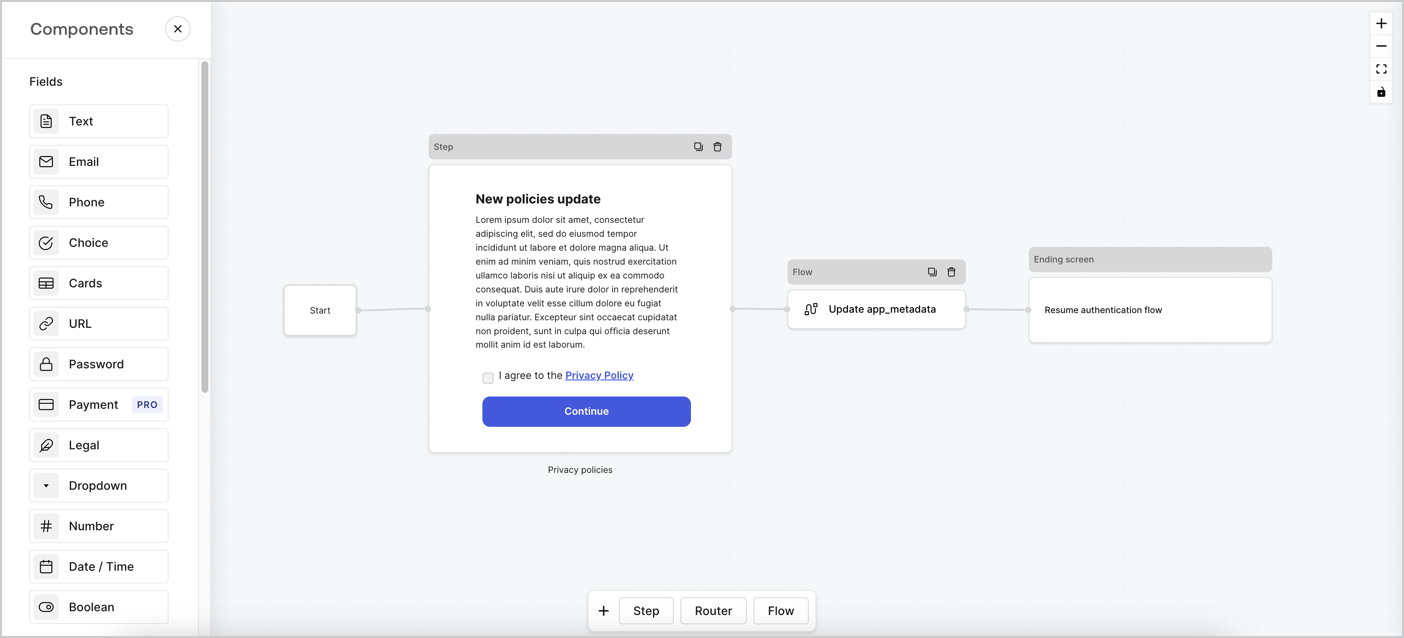
Forms for Actionsは、カスタムプライバシーポリシーフローを作成し、`app_metadata`オブジェクトの下に同意を保存できるようにします。
<Frame>
  <img src="https://mintcdn.com/docs-staging-feat-one-trust-integration/83vol_Wk4WTV8b1b/docs/images/ja-jp/cdy7uua7fh8z/6i68dMvHDTijfRmSgN1x8Q/ad900e7d4c0fb34645921435472b8684/privavy-policy-form.png?fit=max&auto=format&n=83vol_Wk4WTV8b1b&q=85&s=f6acb5b75dee1f4de4e9cb546dcdcab7" alt="Dashboard > Actions > Forms > Privacy policy use case" data-og-width="1404" width="1404" data-og-height="638" height="638" data-path="docs/images/ja-jp/cdy7uua7fh8z/6i68dMvHDTijfRmSgN1x8Q/ad900e7d4c0fb34645921435472b8684/privavy-policy-form.png" data-optimize="true" data-opv="3" srcset="https://mintcdn.com/docs-staging-feat-one-trust-integration/83vol_Wk4WTV8b1b/docs/images/ja-jp/cdy7uua7fh8z/6i68dMvHDTijfRmSgN1x8Q/ad900e7d4c0fb34645921435472b8684/privavy-policy-form.png?w=280&fit=max&auto=format&n=83vol_Wk4WTV8b1b&q=85&s=df8547eb4d8b5a239b0b6222aaefa112 280w, https://mintcdn.com/docs-staging-feat-one-trust-integration/83vol_Wk4WTV8b1b/docs/images/ja-jp/cdy7uua7fh8z/6i68dMvHDTijfRmSgN1x8Q/ad900e7d4c0fb34645921435472b8684/privavy-policy-form.png?w=560&fit=max&auto=format&n=83vol_Wk4WTV8b1b&q=85&s=3f63f61e0e4ee727d3f9f603067c8ec5 560w, https://mintcdn.com/docs-staging-feat-one-trust-integration/83vol_Wk4WTV8b1b/docs/images/ja-jp/cdy7uua7fh8z/6i68dMvHDTijfRmSgN1x8Q/ad900e7d4c0fb34645921435472b8684/privavy-policy-form.png?w=840&fit=max&auto=format&n=83vol_Wk4WTV8b1b&q=85&s=a49a90b65953f19b29957e3f3d61b864 840w, https://mintcdn.com/docs-staging-feat-one-trust-integration/83vol_Wk4WTV8b1b/docs/images/ja-jp/cdy7uua7fh8z/6i68dMvHDTijfRmSgN1x8Q/ad900e7d4c0fb34645921435472b8684/privavy-policy-form.png?w=1100&fit=max&auto=format&n=83vol_Wk4WTV8b1b&q=85&s=170584b20105ac64887461b648a719f7 1100w, https://mintcdn.com/docs-staging-feat-one-trust-integration/83vol_Wk4WTV8b1b/docs/images/ja-jp/cdy7uua7fh8z/6i68dMvHDTijfRmSgN1x8Q/ad900e7d4c0fb34645921435472b8684/privavy-policy-form.png?w=1650&fit=max&auto=format&n=83vol_Wk4WTV8b1b&q=85&s=ad76da0fba76b9109d81104b7aa8bcf9 1650w, https://mintcdn.com/docs-staging-feat-one-trust-integration/83vol_Wk4WTV8b1b/docs/images/ja-jp/cdy7uua7fh8z/6i68dMvHDTijfRmSgN1x8Q/ad900e7d4c0fb34645921435472b8684/privavy-policy-form.png?w=2500&fit=max&auto=format&n=83vol_Wk4WTV8b1b&q=85&s=d7b8c88ec22d3675d5b3b8235a573e5e 2500w" />
</Frame>

以下のセクションでは、ノードとフローを使用して更新ポリシーフォームを作成する方法と、フォームを[ログイン後](/docs/ja-jp/customize/actions/explore-triggers/signup-and-login-triggers/login-trigger)のアクションに追加する手順について説明します。

## フォームをゼロから作成する

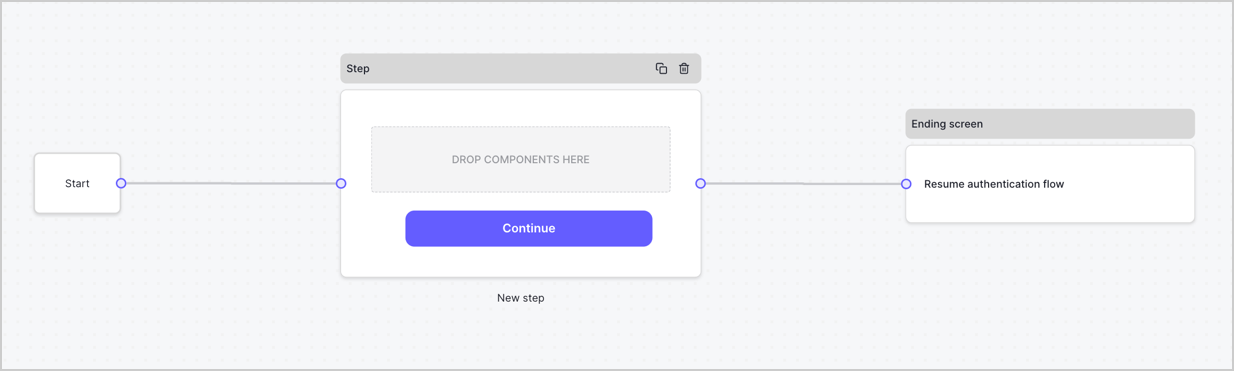
情報を収集するためのフォームを作成するには、次の手順に従ってください。

1. **［Auth0 Dashboard］>［Actions（アクション）］>［Forms（フォーム）］** の順に選択して、フォームエディターを開きます。
2. **［Create Form（フォームを作成）］** > **［Start from scratch（初めから作成する）］** の順に選択します。

特に設定を変更しない限り、新しいフォームには開始ノード、ステップノード、および終了スクリーンノードが含まれます。
<Frame>
  <img src="https://mintcdn.com/docs-staging-feat-one-trust-integration/AKMR-WYMzR1pWwlh/docs/images/ja-jp/cdy7uua7fh8z/2TZ9jSjgEcARFpULI6hz4R/a4319a1bd482f2ee5cc23100fdb2f42c/New-form-Forms-for-action-use-case.png?fit=max&auto=format&n=AKMR-WYMzR1pWwlh&q=85&s=fee820cc97952e86d5d6a7614cf799f8" alt="Dashboard > Forms > Use Cases > Form" data-og-width="1234" width="1234" data-og-height="371" height="371" data-path="docs/images/ja-jp/cdy7uua7fh8z/2TZ9jSjgEcARFpULI6hz4R/a4319a1bd482f2ee5cc23100fdb2f42c/New-form-Forms-for-action-use-case.png" data-optimize="true" data-opv="3" srcset="https://mintcdn.com/docs-staging-feat-one-trust-integration/AKMR-WYMzR1pWwlh/docs/images/ja-jp/cdy7uua7fh8z/2TZ9jSjgEcARFpULI6hz4R/a4319a1bd482f2ee5cc23100fdb2f42c/New-form-Forms-for-action-use-case.png?w=280&fit=max&auto=format&n=AKMR-WYMzR1pWwlh&q=85&s=8737faae8370e439eab061e0558e2f2d 280w, https://mintcdn.com/docs-staging-feat-one-trust-integration/AKMR-WYMzR1pWwlh/docs/images/ja-jp/cdy7uua7fh8z/2TZ9jSjgEcARFpULI6hz4R/a4319a1bd482f2ee5cc23100fdb2f42c/New-form-Forms-for-action-use-case.png?w=560&fit=max&auto=format&n=AKMR-WYMzR1pWwlh&q=85&s=13ea138216bcb44a93b9cf1daf1f77b6 560w, https://mintcdn.com/docs-staging-feat-one-trust-integration/AKMR-WYMzR1pWwlh/docs/images/ja-jp/cdy7uua7fh8z/2TZ9jSjgEcARFpULI6hz4R/a4319a1bd482f2ee5cc23100fdb2f42c/New-form-Forms-for-action-use-case.png?w=840&fit=max&auto=format&n=AKMR-WYMzR1pWwlh&q=85&s=a34a3f9f889bcf42c687f41893fa4a42 840w, https://mintcdn.com/docs-staging-feat-one-trust-integration/AKMR-WYMzR1pWwlh/docs/images/ja-jp/cdy7uua7fh8z/2TZ9jSjgEcARFpULI6hz4R/a4319a1bd482f2ee5cc23100fdb2f42c/New-form-Forms-for-action-use-case.png?w=1100&fit=max&auto=format&n=AKMR-WYMzR1pWwlh&q=85&s=d4bf271adb8507b1da921e5912edd02f 1100w, https://mintcdn.com/docs-staging-feat-one-trust-integration/AKMR-WYMzR1pWwlh/docs/images/ja-jp/cdy7uua7fh8z/2TZ9jSjgEcARFpULI6hz4R/a4319a1bd482f2ee5cc23100fdb2f42c/New-form-Forms-for-action-use-case.png?w=1650&fit=max&auto=format&n=AKMR-WYMzR1pWwlh&q=85&s=a5a469dd5deaf01a221e80c89e0d7238 1650w, https://mintcdn.com/docs-staging-feat-one-trust-integration/AKMR-WYMzR1pWwlh/docs/images/ja-jp/cdy7uua7fh8z/2TZ9jSjgEcARFpULI6hz4R/a4319a1bd482f2ee5cc23100fdb2f42c/New-form-Forms-for-action-use-case.png?w=2500&fit=max&auto=format&n=AKMR-WYMzR1pWwlh&q=85&s=7f7e3030046bbe67a8b8baa6ec1d023a 2500w" />
</Frame>

### ステップノードを構成する

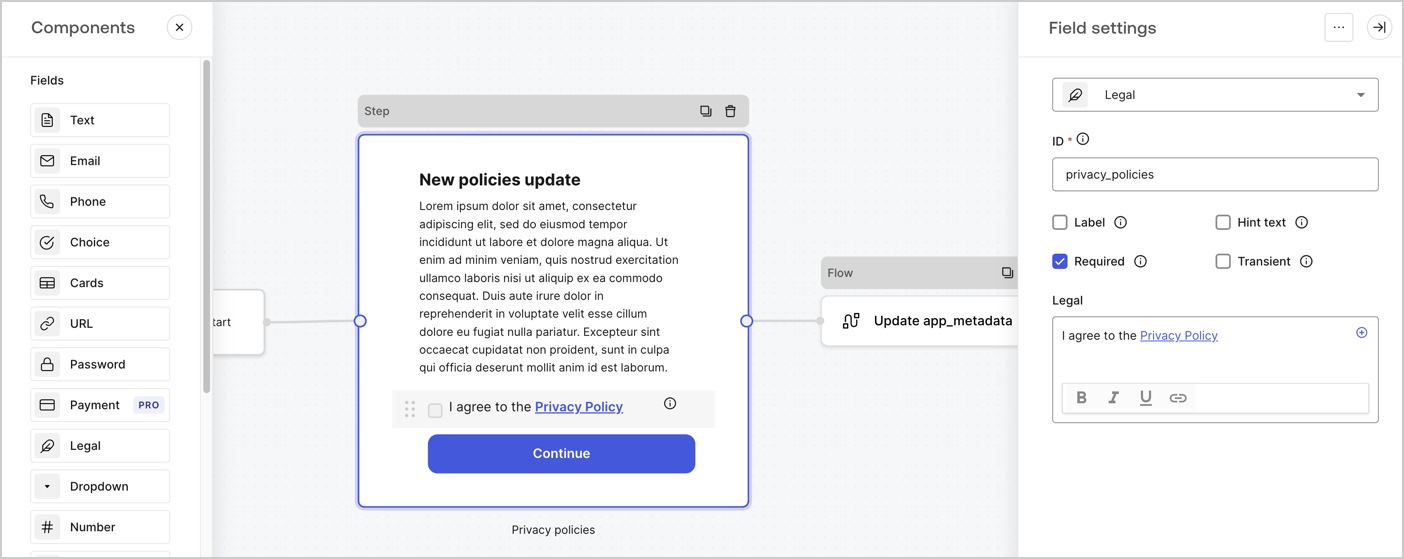
ステップノードは、ユーザーに表示されるグラフィカルインターフェースです。次の手順に従って、ステップノードに[フィールド](/docs/ja-jp/customize/forms/nodes-and-components)を追加し、新しい同意の値を収集します。

1. **［Components menu（コンポーネントメニュー）］** から **［Rich text（リッチテキスト）］** フィールドを **Step（ステップ）** ノードにドラッグします。

   * **Rich text（リッチテキスト）** ：プライバシーポリシー更新の説明を入力します。
   * **［Save（保存）］** を選択します。
2. **［Legal（法務）］** フィールドを **Step（ステップ）** ノードにドラッグします。

   * **Id** ：`privacy_policies`を入力します。
   * **Required（必要）** ：チェックボックスを有効にします。
   * **Legal（法的文）** ：「`I agree to the Privacy Policy`（プライバシーポリシーに同意します）」と入力します。
   * **［Save（保存）］** を選択します。
3. **［Publish（公開）］** を選択して保存します。

<Frame>
  <img src="https://mintcdn.com/docs-staging-feat-one-trust-integration/Ku0Y5lgpZ4N6D15c/docs/images/ja-jp/cdy7uua7fh8z/59zFFjQjAnjogkc2QGIqqJ/0ad66b1b636544122aa4e65968b76c2c/privacy-policy-step-node.png?fit=max&auto=format&n=Ku0Y5lgpZ4N6D15c&q=85&s=a846bd5dfbfa77ff315e695afd5ef53c" alt="Dashboard > Actions > Forms > Use case privacy policy step node" data-og-width="1404" width="1404" data-og-height="559" height="559" data-path="docs/images/ja-jp/cdy7uua7fh8z/59zFFjQjAnjogkc2QGIqqJ/0ad66b1b636544122aa4e65968b76c2c/privacy-policy-step-node.png" data-optimize="true" data-opv="3" srcset="https://mintcdn.com/docs-staging-feat-one-trust-integration/Ku0Y5lgpZ4N6D15c/docs/images/ja-jp/cdy7uua7fh8z/59zFFjQjAnjogkc2QGIqqJ/0ad66b1b636544122aa4e65968b76c2c/privacy-policy-step-node.png?w=280&fit=max&auto=format&n=Ku0Y5lgpZ4N6D15c&q=85&s=f84dcd31898b22bfa82d67eb8316b3b9 280w, https://mintcdn.com/docs-staging-feat-one-trust-integration/Ku0Y5lgpZ4N6D15c/docs/images/ja-jp/cdy7uua7fh8z/59zFFjQjAnjogkc2QGIqqJ/0ad66b1b636544122aa4e65968b76c2c/privacy-policy-step-node.png?w=560&fit=max&auto=format&n=Ku0Y5lgpZ4N6D15c&q=85&s=6f3056be7c053f7ac9500431bc87eecb 560w, https://mintcdn.com/docs-staging-feat-one-trust-integration/Ku0Y5lgpZ4N6D15c/docs/images/ja-jp/cdy7uua7fh8z/59zFFjQjAnjogkc2QGIqqJ/0ad66b1b636544122aa4e65968b76c2c/privacy-policy-step-node.png?w=840&fit=max&auto=format&n=Ku0Y5lgpZ4N6D15c&q=85&s=17b550ae85e8eeb360fb0faf97652c86 840w, https://mintcdn.com/docs-staging-feat-one-trust-integration/Ku0Y5lgpZ4N6D15c/docs/images/ja-jp/cdy7uua7fh8z/59zFFjQjAnjogkc2QGIqqJ/0ad66b1b636544122aa4e65968b76c2c/privacy-policy-step-node.png?w=1100&fit=max&auto=format&n=Ku0Y5lgpZ4N6D15c&q=85&s=e7f8a063867e7f23fd618de42bb6f9a6 1100w, https://mintcdn.com/docs-staging-feat-one-trust-integration/Ku0Y5lgpZ4N6D15c/docs/images/ja-jp/cdy7uua7fh8z/59zFFjQjAnjogkc2QGIqqJ/0ad66b1b636544122aa4e65968b76c2c/privacy-policy-step-node.png?w=1650&fit=max&auto=format&n=Ku0Y5lgpZ4N6D15c&q=85&s=9a7951545293bff2fa9276d3277ee83c 1650w, https://mintcdn.com/docs-staging-feat-one-trust-integration/Ku0Y5lgpZ4N6D15c/docs/images/ja-jp/cdy7uua7fh8z/59zFFjQjAnjogkc2QGIqqJ/0ad66b1b636544122aa4e65968b76c2c/privacy-policy-step-node.png?w=2500&fit=max&auto=format&n=Ku0Y5lgpZ4N6D15c&q=85&s=f4e3e4722dd8fe12d86efb82c04e30e9 2500w" />
</Frame>

### フローノードを構成する

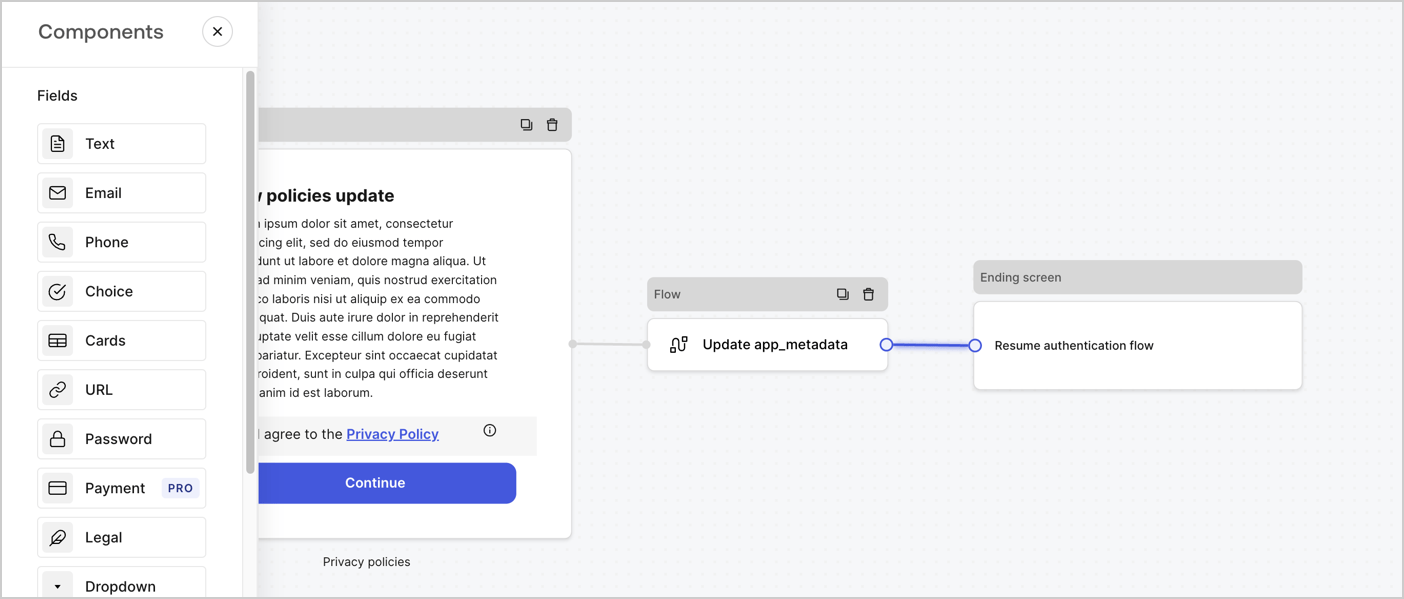
次の手順に従って、 **Step（ステップ）** ノードの後に **Flow（フロー）** ノードを追加し、`app_metadata`を更新して認証フローを再開します。

1. フォームエディターの下にある **［Flow（フロー）］** を選択します。
2. **Step（ステップ）** ノードと **Ending Screen（終了画面）** ノードの間にある既存のリンクを削除します。
3. 新たに **［Flow（フロー）］** > **［Click to add a flow（クリックしてフローを追加する）］** > **［Create a new flow（新しいフローを作成する）］** を選択します。

   * **［Name（名前）］** フィールドに`Update app_metadata`と入力します。
   * **［Create（作成）］** を選択します。
   * **［Save（保存）］** を選択します。
4. 下の画像のように **Flow（フロー）ノード** を **Step（ステップ）** ノードと **Ending Screen（終了画面）** ノードにリンクします。
5. **［Publish（公開）］** を選択して保存します。

<Frame>
  <img src="https://mintcdn.com/docs-staging-feat-one-trust-integration/83vol_Wk4WTV8b1b/docs/images/ja-jp/cdy7uua7fh8z/6YIkzm7SrpM9LW76AXuRzh/353c518fe82bbaa440836da1d83596d6/link-policies.png?fit=max&auto=format&n=83vol_Wk4WTV8b1b&q=85&s=d02131ef11d4e8cb9a57c22d9a530684" alt="Dashboard > Actions > Forms > Form" data-og-width="1404" width="1404" data-og-height="599" height="599" data-path="docs/images/ja-jp/cdy7uua7fh8z/6YIkzm7SrpM9LW76AXuRzh/353c518fe82bbaa440836da1d83596d6/link-policies.png" data-optimize="true" data-opv="3" srcset="https://mintcdn.com/docs-staging-feat-one-trust-integration/83vol_Wk4WTV8b1b/docs/images/ja-jp/cdy7uua7fh8z/6YIkzm7SrpM9LW76AXuRzh/353c518fe82bbaa440836da1d83596d6/link-policies.png?w=280&fit=max&auto=format&n=83vol_Wk4WTV8b1b&q=85&s=59a64df0178387d9168afa7e9e822b30 280w, https://mintcdn.com/docs-staging-feat-one-trust-integration/83vol_Wk4WTV8b1b/docs/images/ja-jp/cdy7uua7fh8z/6YIkzm7SrpM9LW76AXuRzh/353c518fe82bbaa440836da1d83596d6/link-policies.png?w=560&fit=max&auto=format&n=83vol_Wk4WTV8b1b&q=85&s=5701c1d23aff24bf95b0fe5a494179de 560w, https://mintcdn.com/docs-staging-feat-one-trust-integration/83vol_Wk4WTV8b1b/docs/images/ja-jp/cdy7uua7fh8z/6YIkzm7SrpM9LW76AXuRzh/353c518fe82bbaa440836da1d83596d6/link-policies.png?w=840&fit=max&auto=format&n=83vol_Wk4WTV8b1b&q=85&s=655bf7b4e6b6e54bfd12934c9e3979cf 840w, https://mintcdn.com/docs-staging-feat-one-trust-integration/83vol_Wk4WTV8b1b/docs/images/ja-jp/cdy7uua7fh8z/6YIkzm7SrpM9LW76AXuRzh/353c518fe82bbaa440836da1d83596d6/link-policies.png?w=1100&fit=max&auto=format&n=83vol_Wk4WTV8b1b&q=85&s=6b10bae9d98cf2903c2d99945255798a 1100w, https://mintcdn.com/docs-staging-feat-one-trust-integration/83vol_Wk4WTV8b1b/docs/images/ja-jp/cdy7uua7fh8z/6YIkzm7SrpM9LW76AXuRzh/353c518fe82bbaa440836da1d83596d6/link-policies.png?w=1650&fit=max&auto=format&n=83vol_Wk4WTV8b1b&q=85&s=a54feeb9cd54856fd3ed23735ed52cc7 1650w, https://mintcdn.com/docs-staging-feat-one-trust-integration/83vol_Wk4WTV8b1b/docs/images/ja-jp/cdy7uua7fh8z/6YIkzm7SrpM9LW76AXuRzh/353c518fe82bbaa440836da1d83596d6/link-policies.png?w=2500&fit=max&auto=format&n=83vol_Wk4WTV8b1b&q=85&s=e11452b5665244a8492e8a1759a46495 2500w" />
</Frame>

Auth0ユーザーの更新アクションをフローに追加するには、次の手順に従います。

1. **［Update user\_metadata（user\_metadata更新）］* \*\*\* フロー*\* を選択してから **［Edit flow（フローの編集）］** を選択し、新しいタブにフローエディターを開きます。
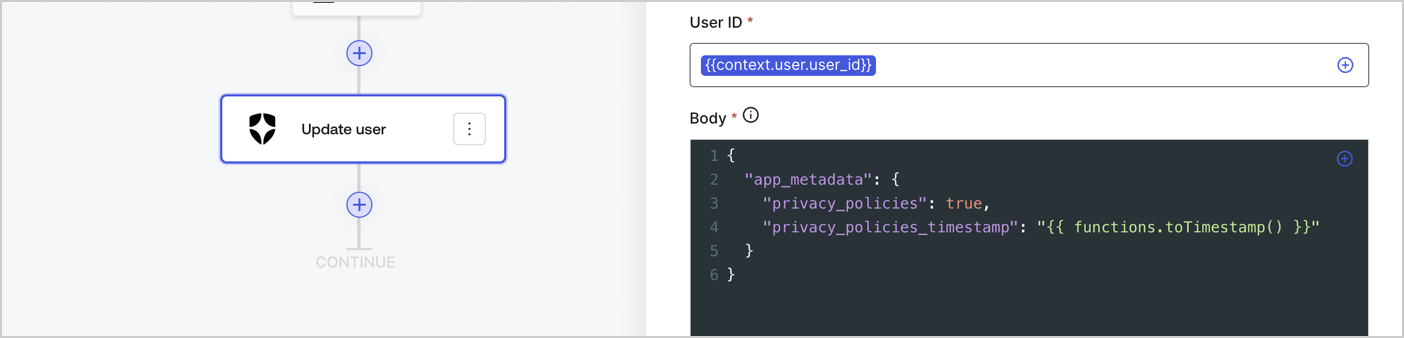
2. アクションの **［Start（開始）］** の下にある **［+］** アイコンを選択し、 **Update user（ユーザー更新）** アクションを追加します。以下のフィールドに入力して、 **［Save（保存）］** を選択します。

   * **Connection（接続）** ：ドロップダウンからM2MアプリケーションへのVault接続を選択します。

   * **User ID（ユーザーID）** ：`{{context.user.user_id}}`と入力します。

   * **Body（ボディー）** ：以下のコードをコピーして貼り付け、privacy\_policiesとprivacy\_policies\_timestampのプロパティを含むapp\_metadataを更新します。

     ```text lines theme={null}
     {
       "app_metadata": {
         "privacy_policies": true,
         "privacy_policies_timestamp": "{{ functions.toTimestamp() }}"
       }
     }
     ```

   * **［Save（保存）］** を選択します。
3. **［Publish（公開）］** を選択して保存します。

<Frame>
  <img src="https://mintcdn.com/docs-staging-feat-one-trust-integration/g7NAxPoNzIKOrOXg/docs/images/ja-jp/cdy7uua7fh8z/CvMNIwWrOUwaFW4X3G28p/1fb70ae57a20749d9ffaaba8dc0b7e26/update-user-privacy.png?fit=max&auto=format&n=g7NAxPoNzIKOrOXg&q=85&s=eb6239b5bc230c0416fd434ea1aa5e5b" alt="Dashboard > Actions > Forms > User case privacy policy code" data-og-width="1404" width="1404" data-og-height="338" height="338" data-path="docs/images/ja-jp/cdy7uua7fh8z/CvMNIwWrOUwaFW4X3G28p/1fb70ae57a20749d9ffaaba8dc0b7e26/update-user-privacy.png" data-optimize="true" data-opv="3" srcset="https://mintcdn.com/docs-staging-feat-one-trust-integration/g7NAxPoNzIKOrOXg/docs/images/ja-jp/cdy7uua7fh8z/CvMNIwWrOUwaFW4X3G28p/1fb70ae57a20749d9ffaaba8dc0b7e26/update-user-privacy.png?w=280&fit=max&auto=format&n=g7NAxPoNzIKOrOXg&q=85&s=0409ca51ae69d95090df25a3a92921f3 280w, https://mintcdn.com/docs-staging-feat-one-trust-integration/g7NAxPoNzIKOrOXg/docs/images/ja-jp/cdy7uua7fh8z/CvMNIwWrOUwaFW4X3G28p/1fb70ae57a20749d9ffaaba8dc0b7e26/update-user-privacy.png?w=560&fit=max&auto=format&n=g7NAxPoNzIKOrOXg&q=85&s=ffc9a092b75b5ab95619f817c3cf5a41 560w, https://mintcdn.com/docs-staging-feat-one-trust-integration/g7NAxPoNzIKOrOXg/docs/images/ja-jp/cdy7uua7fh8z/CvMNIwWrOUwaFW4X3G28p/1fb70ae57a20749d9ffaaba8dc0b7e26/update-user-privacy.png?w=840&fit=max&auto=format&n=g7NAxPoNzIKOrOXg&q=85&s=ca19d037b694f88ea7cd185fc666d352 840w, https://mintcdn.com/docs-staging-feat-one-trust-integration/g7NAxPoNzIKOrOXg/docs/images/ja-jp/cdy7uua7fh8z/CvMNIwWrOUwaFW4X3G28p/1fb70ae57a20749d9ffaaba8dc0b7e26/update-user-privacy.png?w=1100&fit=max&auto=format&n=g7NAxPoNzIKOrOXg&q=85&s=fc9b9548d1ba1f2b03489e9f778e0dfc 1100w, https://mintcdn.com/docs-staging-feat-one-trust-integration/g7NAxPoNzIKOrOXg/docs/images/ja-jp/cdy7uua7fh8z/CvMNIwWrOUwaFW4X3G28p/1fb70ae57a20749d9ffaaba8dc0b7e26/update-user-privacy.png?w=1650&fit=max&auto=format&n=g7NAxPoNzIKOrOXg&q=85&s=7a98805716cdd100d61661ad16a54154 1650w, https://mintcdn.com/docs-staging-feat-one-trust-integration/g7NAxPoNzIKOrOXg/docs/images/ja-jp/cdy7uua7fh8z/CvMNIwWrOUwaFW4X3G28p/1fb70ae57a20749d9ffaaba8dc0b7e26/update-user-privacy.png?w=2500&fit=max&auto=format&n=g7NAxPoNzIKOrOXg&q=85&s=88dcfcfcc4171f7c1c201d2566b632a8 2500w" />
</Frame>

<Callout icon="file-lines" color="#0EA5E9" iconType="regular">
  **Update app\_metadata** フローは、`privacy_policies true`値を`app_metadata`オブジェクトに追加し、[ヘルパー関数](/docs/ja-jp/customize/forms/variables)を使ってタイムスタンプを生成します。
</Callout>

## フォームのレンダーコードを取得する

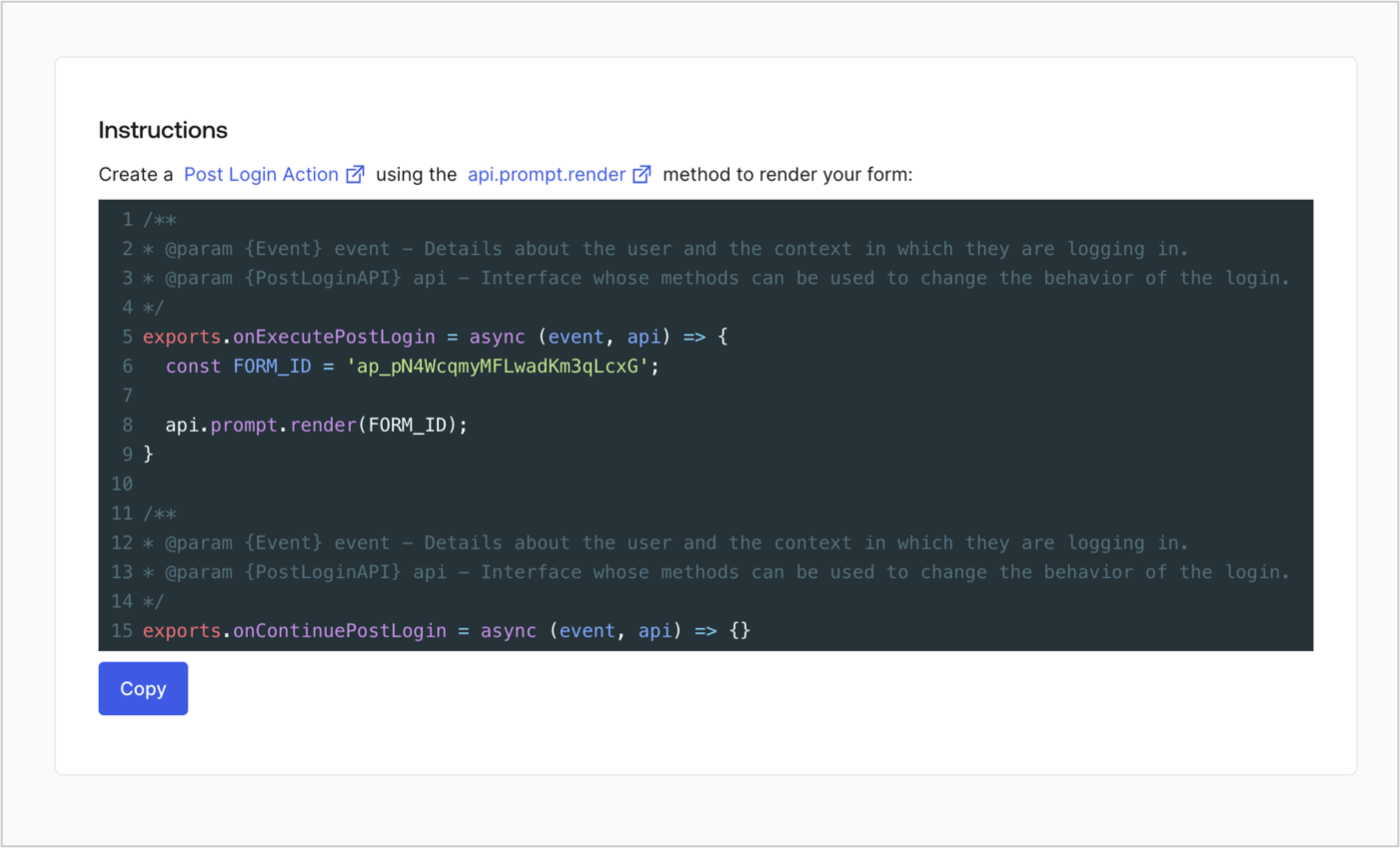
フォームのレンダーコードを取得して、カスタムのログイン後アクションでフォームを視覚的にレンダリングするには、以下の手順に従います。

* フォームエディターから **`<>`［Render（レンダー）］** を選択します。
* **［Copy（コピー）］** を選択します。

<Frame>
  <img src="https://mintcdn.com/docs-staging-feat-one-trust-integration/AKMR-WYMzR1pWwlh/docs/images/ja-jp/cdy7uua7fh8z/2EIUzc539sq9lwoTKbjoJv/496a864c0fc44a782c9cadca119dbfb0/embed.png?fit=max&auto=format&n=AKMR-WYMzR1pWwlh&q=85&s=6a3c5bc0058d07e7d7c97ca594ec0ea4" alt="Dashboard > Actions > Forms > Form > Embed" data-og-width="1400" width="1400" data-og-height="848" height="848" data-path="docs/images/ja-jp/cdy7uua7fh8z/2EIUzc539sq9lwoTKbjoJv/496a864c0fc44a782c9cadca119dbfb0/embed.png" data-optimize="true" data-opv="3" srcset="https://mintcdn.com/docs-staging-feat-one-trust-integration/AKMR-WYMzR1pWwlh/docs/images/ja-jp/cdy7uua7fh8z/2EIUzc539sq9lwoTKbjoJv/496a864c0fc44a782c9cadca119dbfb0/embed.png?w=280&fit=max&auto=format&n=AKMR-WYMzR1pWwlh&q=85&s=cb3d702cd92a2042a2f91ea7798bb0ad 280w, https://mintcdn.com/docs-staging-feat-one-trust-integration/AKMR-WYMzR1pWwlh/docs/images/ja-jp/cdy7uua7fh8z/2EIUzc539sq9lwoTKbjoJv/496a864c0fc44a782c9cadca119dbfb0/embed.png?w=560&fit=max&auto=format&n=AKMR-WYMzR1pWwlh&q=85&s=da96facfcfbd356f58882a5bbc8c8c0d 560w, https://mintcdn.com/docs-staging-feat-one-trust-integration/AKMR-WYMzR1pWwlh/docs/images/ja-jp/cdy7uua7fh8z/2EIUzc539sq9lwoTKbjoJv/496a864c0fc44a782c9cadca119dbfb0/embed.png?w=840&fit=max&auto=format&n=AKMR-WYMzR1pWwlh&q=85&s=951eec6f8bbe7ba519d31208d33fe4fa 840w, https://mintcdn.com/docs-staging-feat-one-trust-integration/AKMR-WYMzR1pWwlh/docs/images/ja-jp/cdy7uua7fh8z/2EIUzc539sq9lwoTKbjoJv/496a864c0fc44a782c9cadca119dbfb0/embed.png?w=1100&fit=max&auto=format&n=AKMR-WYMzR1pWwlh&q=85&s=c60e53d2b55109757794432c7ef1b0e4 1100w, https://mintcdn.com/docs-staging-feat-one-trust-integration/AKMR-WYMzR1pWwlh/docs/images/ja-jp/cdy7uua7fh8z/2EIUzc539sq9lwoTKbjoJv/496a864c0fc44a782c9cadca119dbfb0/embed.png?w=1650&fit=max&auto=format&n=AKMR-WYMzR1pWwlh&q=85&s=4d45826c3d678a160e6eb464745c4d93 1650w, https://mintcdn.com/docs-staging-feat-one-trust-integration/AKMR-WYMzR1pWwlh/docs/images/ja-jp/cdy7uua7fh8z/2EIUzc539sq9lwoTKbjoJv/496a864c0fc44a782c9cadca119dbfb0/embed.png?w=2500&fit=max&auto=format&n=AKMR-WYMzR1pWwlh&q=85&s=1873c20c11e4f145fec16e2ff9247acf 2500w" />
</Frame>

## ログイン後のアクションを作成する

ログイン後のアクションを作成してフォームをレンダリングするには、次の手順に従います。

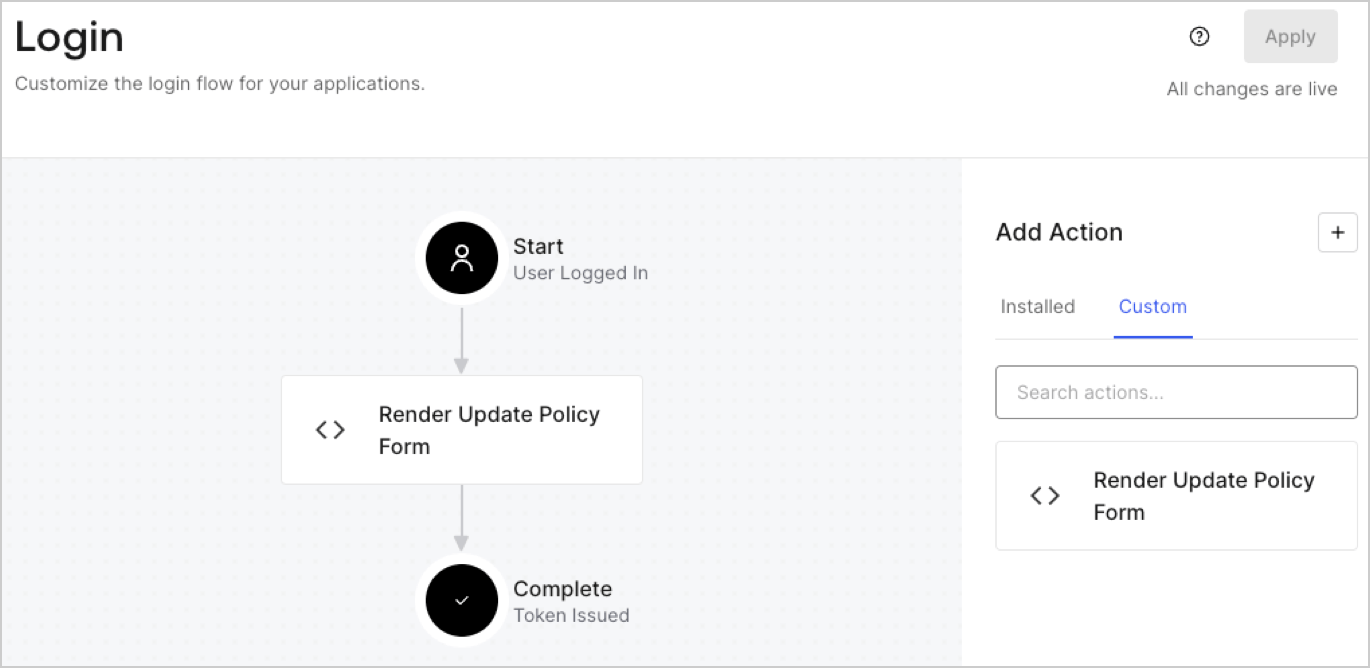
1. **［Auth0 Dashboard］>［Actions（アクション）］>［Flows（フロー）］>［Login（ログイン）］** に移動します。
2. **［+］** アイコンを選択し、 **［Build from scratch（初めから構築する）］** を選択します。

   * **Name（名前）** ：`Render Update Policy Form`（更新ポリシーフォームのレンダリング）と入力します。
   * **Trigger（トリガー）** ：［`Login / Post Login`（ログイン/ログイン後）］を選択します。
   * **Runtime（ランタイム）** ：推奨バージョンを選択します。
3. **［Create（作成）］** を選択します。

ログイン後のアクションを構成するには、以下を行います。

1. 既存のコードをコードエディターから削除します。

2. フォームのレンダリングコードをコードエディターに貼り付けます。

3. コードを編集して、フォームをレンダリングする条件ロジックを定義します。

   ```javascript lines theme={null}
   /**
   * @param {Event} event - Details about the user and the context in which they are logging in.
   * @param {PostLoginAPI} api - Interface whose methods can be used to change the behavior of the login.
   */
   exports.onExecutePostLogin = async (event, api) => {
     const FORM_ID = 'REPLACE_WITH_YOUR_FORM_ID';

     if (event.user.app_metadata.privacy_policies !== true) {
       api.prompt.render(FORM_ID);
     }
   }

   exports.onContinuePostLogin = async (event, api) => { }
   ```

   <Callout icon="file-lines" color="#0EA5E9" iconType="regular">
     上の例にあるコードでは、ユーザーのアプリメタデータに`privacy_policies`プロパティがない場合にフォームが表示されます。
   </Callout>

4. **［Deploy（デプロイ）］** を選択します。

5. **［Render Update Policy Form（更新ポリシーフォームのレンダリング）］** アクションを **Login（ログイン）** フローにドラッグ＆ドロップします。

   <Frame>
     <img src="https://mintcdn.com/docs-staging-feat-one-trust-integration/toLchma4ogP2Nawx/docs/images/ja-jp/cdy7uua7fh8z/5TOwDgevZsBqd7yZynUYWU/41ca909dc3007aed4f40ff794a05efa5/postlogin.png?fit=max&auto=format&n=toLchma4ogP2Nawx&q=85&s=622ed2429b6b854023c79902953ed0bc" alt="Dashboard > Forms > Use Case > Render update policy form login action" data-og-width="1370" width="1370" data-og-height="668" height="668" data-path="docs/images/ja-jp/cdy7uua7fh8z/5TOwDgevZsBqd7yZynUYWU/41ca909dc3007aed4f40ff794a05efa5/postlogin.png" data-optimize="true" data-opv="3" srcset="https://mintcdn.com/docs-staging-feat-one-trust-integration/toLchma4ogP2Nawx/docs/images/ja-jp/cdy7uua7fh8z/5TOwDgevZsBqd7yZynUYWU/41ca909dc3007aed4f40ff794a05efa5/postlogin.png?w=280&fit=max&auto=format&n=toLchma4ogP2Nawx&q=85&s=b0a8a461b10994caf69cbacc8faec7d8 280w, https://mintcdn.com/docs-staging-feat-one-trust-integration/toLchma4ogP2Nawx/docs/images/ja-jp/cdy7uua7fh8z/5TOwDgevZsBqd7yZynUYWU/41ca909dc3007aed4f40ff794a05efa5/postlogin.png?w=560&fit=max&auto=format&n=toLchma4ogP2Nawx&q=85&s=1ba24a959d46b82bafb6ba1fb0349048 560w, https://mintcdn.com/docs-staging-feat-one-trust-integration/toLchma4ogP2Nawx/docs/images/ja-jp/cdy7uua7fh8z/5TOwDgevZsBqd7yZynUYWU/41ca909dc3007aed4f40ff794a05efa5/postlogin.png?w=840&fit=max&auto=format&n=toLchma4ogP2Nawx&q=85&s=dec4731c24a3c1bd82d09ee252233dc2 840w, https://mintcdn.com/docs-staging-feat-one-trust-integration/toLchma4ogP2Nawx/docs/images/ja-jp/cdy7uua7fh8z/5TOwDgevZsBqd7yZynUYWU/41ca909dc3007aed4f40ff794a05efa5/postlogin.png?w=1100&fit=max&auto=format&n=toLchma4ogP2Nawx&q=85&s=5d205b7796e4bf3cad81268cace459aa 1100w, https://mintcdn.com/docs-staging-feat-one-trust-integration/toLchma4ogP2Nawx/docs/images/ja-jp/cdy7uua7fh8z/5TOwDgevZsBqd7yZynUYWU/41ca909dc3007aed4f40ff794a05efa5/postlogin.png?w=1650&fit=max&auto=format&n=toLchma4ogP2Nawx&q=85&s=9643e6ec09474323066d61b93edc73ef 1650w, https://mintcdn.com/docs-staging-feat-one-trust-integration/toLchma4ogP2Nawx/docs/images/ja-jp/cdy7uua7fh8z/5TOwDgevZsBqd7yZynUYWU/41ca909dc3007aed4f40ff794a05efa5/postlogin.png?w=2500&fit=max&auto=format&n=toLchma4ogP2Nawx&q=85&s=281f4793c2de499362d70238a950a47f 2500w" />
   </Frame>

6. **［Apply（適用）］** を選択します。

### 実装をテストする

次の手順に従って実装をテストします。

1. `app_metadata`属性の`privacy_policies`に値がない既存のユーザーとしてログインします。
2. ログインフローのログイン後アクションがフォームをレンダリングして、同意を求めます。
3. **［Auth0 Dashboard］>［User Management（ユーザー管理）］>［Users（ユーザー）］** に移動し、ユーザーを見つけて、`app_metadata`属性の`privacy_policies`に`true`値とタイムスタンプが含まれていることを確認します。